ReactJS
React is a front-end library developed by Facebook. It is used for handling the view layer for web and mobile apps. ReactJS allows us to create reusable UI components. It is currently one of the most popular JavaScript libraries and has a strong foundation and large community behind it.
Audience
This tutorial will help JavaScript developers who look ahead to deal with ReactJS for the first time. We will try to introduce every concept by showing simple code examples that can be easily understood. After finishing all the chapters, you will feel confident working with ReactJS. As a bonus we will introduce additional elements that work well with ReactJS to help you learn the best practices and follow the modern JavaScript trends.
Prerequisites
If you want to work with ReactJS, you need to have solid knowledge of JavaScript, HTML5, and CSS. Even though ReactJS doesn’t use HTML, the JSX is similar so your HTML knowledge will be very helpful. We will explain this more in one of the next chapters. We will also use EcmaScript 2015 syntax so any knowledge in this area can be helpful.
ReactJS is JavaScript library used for building reusable UI components. According to React official documentation, following is the definition −
React is a library for building composable user interfaces. It encourages the creation of reusable UI components, which present data that changes over time. Lots of people use React as the V in MVC. React abstracts away the DOM from you, offering a simpler programming model and better performance. React can also render on the server using Node, and it can power native apps using React Native. React implements one-way reactive data flow, which reduces the boilerplate and is easier to reason about than traditional data binding.
React Features
- JSX − JSX is JavaScript syntax extension. It isn’t necessary to use JSX in React development, but it is recommended.
- Components − React is all about components. You need to think of everything as a component. This will help you maintain the code when working on larger scale projects.
- Unidirectional data flow and Flux − React implements one-way data flow which makes it easy to reason about your app. Flux is a pattern that helps keeping your data unidirectional.
- License − React is licensed under the Facebook Inc. Documentation is licensed under CC BY 4.0.
React Advantages
- Uses virtual DOM which is a JavaScript object. This will improve apps performance, since JavaScript virtual DOM is faster than the regular DOM.
- Can be used on client and server side as well as with other frameworks.
- Component and data patterns improve readability, which helps to maintain larger apps.
React Limitations
- Covers only the view layer of the app, hence you still need to choose other technologies to get a complete tooling set for development.
- Uses inline templating and JSX, which might seem awkward to some developers.
In this chapter, we will show you how to set up an environment for successful React development. Notice that there are many steps involved but this will help speed up the development process later. We will need NodeJS, so if you don’t have it installed, check the link from the following table.
| Sr.No. | Software & Description |
|---|---|
| 1 | NodeJS and NPM
NodeJS is the platform needed for the ReactJS development. Checkout our NodeJS Environment Setup. |
After successfully installing NodeJS, we can start installing React upon it using npm. You can install ReactJS in two ways
- Using webpack and babel.
- Using the create-react-app command.
Installing ReactJS using webpack and babel
Webpack is a module bundler (manages and loads independent modules). It takes dependent modules and compiles them to a single (file) bundle. You can use this bundle while developing apps using command line or, by configuring it using webpack.config file.
Babel is a JavaScript compiler and transpiler. It is used to convert one source code to other. Using this you will be able to use the new ES6 features in your code where, babel converts it into plain old ES5 which can be run on all browsers.
Step 1 – Create the Root Folder
Create a folder with name reactApp on the desktop to install all the required files, using the mkdir command.
C:\Users\username\Desktop>mkdir reactApp
C:\Users\username\Desktop>cd reactApp
To create any module, it is required to generate the package.json file. Therefore, after Creating the folder, we need to create a package.json file. To do so you need to run the npm init command from the command prompt.
C:\Users\username\Desktop\reactApp>npm init
This command asks information about the module such as packagename, description, author etc. you can skip these using the –y option.
C:\Users\username\Desktop\reactApp>npm init -y
Wrote to C:\reactApp\package.json:
{
   "name": "reactApp",
   "version": "1.0.0",
   "description": "",
   "main": "index.js",
   "scripts": {
      "test": "echo \"Error: no test specified\" && exit 1"
   },
   "keywords": [],
   "author": "",
   "license": "ISC"
}
Step 2 – install React and react dom
Since our main task is to install ReactJS, install it, and its dom packages, using install react and react-dom commands of npm respectively. You can add the packages we install, to package.json file using the –save option.
C:\Users\Tutorialspoint\Desktop\reactApp>npm install react --save
C:\Users\Tutorialspoint\Desktop\reactApp>npm install react-dom --save
Or, you can install all of them in single command as −
C:\Users\username\Desktop\reactApp>npm install react react-dom --save
Step 3 – Install webpack
Since we are using webpack to generate bundler install webpack, webpack-dev-server and webpack-cli.
C:\Users\username\Desktop\reactApp>npm install webpack --save
C:\Users\username\Desktop\reactApp>npm install webpack-dev-server --save
C:\Users\username\Desktop\reactApp>npm install webpack-cli --save
Or, you can install all of them in single command as −
C:\Users\username\Desktop\reactApp>npm install webpack webpack-dev-server webpack-cli --save
Step 4 – Install babel
Install babel, and its plugins babel-core, babel-loader, babel-preset-env, babel-preset-react and, html-webpack-plugin
C:\Users\username\Desktop\reactApp>npm install babel-core --save-dev
C:\Users\username\Desktop\reactApp>npm install babel-loader --save-dev
C:\Users\username\Desktop\reactApp>npm install babel-preset-env --save-dev
C:\Users\username\Desktop\reactApp>npm install babel-preset-react --save-dev
C:\Users\username\Desktop\reactApp>npm install html-webpack-plugin --save-dev
Or, you can install all of them in single command as −
C:\Users\username\Desktop\reactApp>npm install babel-core babel-loader babel-preset-env
   babel-preset-react html-webpack-plugin --save-dev
Step 5 – Create the Files
To complete the installation, we need to create certain files namely, index.html, App.js, main.js, webpack.config.js and, .babelrc. You can create these files manually or, using command prompt.
C:\Users\username\Desktop\reactApp>type nul > index.html
C:\Users\username\Desktop\reactApp>type nul > App.js
C:\Users\username\Desktop\reactApp>type nul > main.js
C:\Users\username\Desktop\reactApp>type nul > webpack.config.js
C:\Users\username\Desktop\reactApp>type nul > .babelrc
Step 6 – Set Compiler, Server and Loaders
Open webpack-config.js file and add the following code. We are setting webpack entry point to be main.js. Output path is the place where bundled app will be served. We are also setting the development server to 8001 port. You can choose any port you want.
webpack.config.js
const path = require('path');
const HtmlWebpackPlugin = require('html-webpack-plugin');

module.exports = {
   entry: './main.js',
   output: {
      path: path.join(__dirname, '/bundle'),
      filename: 'index_bundle.js'
   },
   devServer: {
      inline: true,
      port: 8001
   },
   module: {
      rules: [
         {
            test: /\.jsx?$/,
            exclude: /node_modules/,
            loader: 'babel-loader',
            query: {
               presets: ['es2015', 'react']
            }
         }
      ]
   },
   plugins:[
      new HtmlWebpackPlugin({
         template: './index.html'
      })
   ]
}
Open the package.json and delete “test” “echo \”Error: no test specified\” && exit 1″ inside “scripts” object. We are deleting this line since we will not do any testing in this tutorial. Let’s add the start and build commands instead.
"start": "webpack-dev-server --mode development --open --hot",
"build": "webpack --mode production"
Step 7 – index.html
This is just regular HTML. We are setting div id = “app” as a root element for our app and adding index_bundle.js script, which is our bundled app file.
<!DOCTYPE html>
<html lang = "en">
   <head>
      <meta charset = "UTF-8">
      <title>React App</title>
   </head>
   <body>
      <div id = "app"></div>
      <script src = 'index_bundle.js'></script>
   </body>
</html>
Step 8 − App.jsx and main.js
This is the first React component. We will explain React components in depth in a subsequent chapter. This component will render Hello World.
App.js
import React, { Component } from 'react';
class App extends Component{
   render(){
      return(
         <div>
            <h1>Hello World</h1>
         </div>
      );
   }
}
export default App;
We need to import this component and render it to our root App element, so we can see it in the browser.
main.js
import React from 'react';
import ReactDOM from 'react-dom';
import App from './App.js';

ReactDOM.render(<App />, document.getElementById('app'));
Note − Whenever you want to use something, you need to import it first. If you want to make the component usable in other parts of the app, you need to export it after creation and import it in the file where you want to use it.
Create a file with name .babelrc and copy the following content to it.
{
   "presets":["env", "react"]
}
Step 9 – Running the Server
The setup is complete and we can start the server by running the following command.
C:\Users\username\Desktop\reactApp>npm start
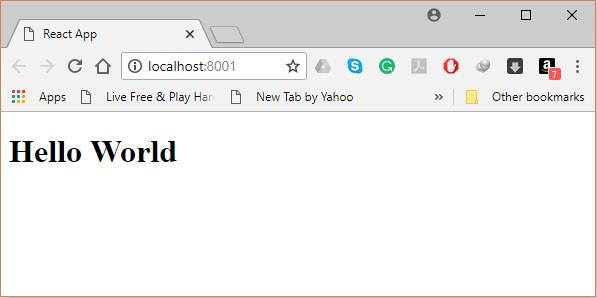
It will show the port we need to open in the browser. In our case, it is http://localhost:8001/. After we open it, we will see the following output.
Step 10 – Generating the bundle
Finally, to generate the bundle you need to run the build command in the command prompt as −
C:\Users\Tutorialspoint\Desktop\reactApp>npm run build
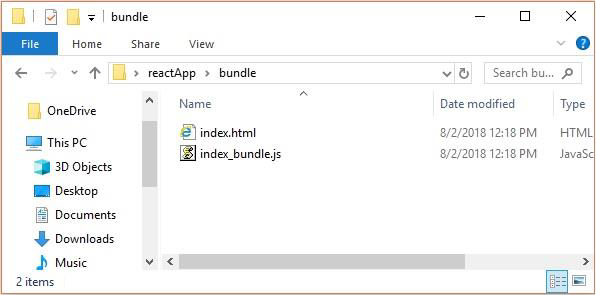
This will generate the bundle in the current folder as shown below.
Using the create-react-app command
Instead of using webpack and babel you can install ReactJS more simply by installing create-react-app.
Step 1 – install create-react-app
Browse through the desktop and install the Create React App using command prompt as shown below −
C:\Users\Tutorialspoint>cd C:\Users\Tutorialspoint\Desktop\
C:\Users\Tutorialspoint\Desktop>npx create-react-app my-app
This will create a folder named my-app on the desktop and installs all the required files in it.
Step 2 – Delete all the source files
Browse through the src folder in the generated my-app folder and remove all the files in it as shown below −
C:\Users\Tutorialspoint\Desktop>cd my-app/src
C:\Users\Tutorialspoint\Desktop\my-app\src>del *
C:\Users\Tutorialspoint\Desktop\my-app\src\*, Are you sure (Y/N)? y
Step 3 – Add files
Add files with names index.css and index.js in the src folder as −
C:\Users\Tutorialspoint\Desktop\my-app\src>type nul > index.css
C:\Users\Tutorialspoint\Desktop\my-app\src>type nul > index.js
In the index.js file add the following code
import React from 'react';
import ReactDOM from 'react-dom';
import './index.css';
Step 4 – Run the project
Finally, run the project using the start command.
npm start